Mesh2HRTF Python API
This is the documentation. Of the Python part of the Mesh2HRTF API. For the complete Mesh2HRTF documentation visit the Wiki, or find more information about the Mesh2HRTF API here
The main function of the Python API is output2hrtf which reads
the raw simulation results and saves them as SOFA files. It reads all required
parameters from parameters.json, which is generated upon exporting a
Mesh2HRTF project from Blender.
Functions:
|
Compute directional transfer functions from HRIRs. |
|
Compute HRIR from HRTF by means of the inverse Fourier transform. |
|
Export pressure on the (head) mesh to vtk files for importing in ParaView |
|
Inspect SOFA files through plots. |
|
Run NumCalc on one or multiple Mesh2HRTF project folders. |
|
Merge HRTFs and HRIRs from SOFA-files containing left and right ear data. |
|
Process NumCalc output and write data to disk. |
|
Process NumCalc outputs from multiple projects and write data to disk. |
|
Read Mesh2HRTF evaluation grid. |
|
Read estimated RAM consumption from Memory.txt. |
|
Reference HRTFs to the sound pressure in the center of the head. |
|
Remove output data from Mesh2HRTF project folder. |
|
Resample Sofa file to new sampling rate. |
|
Write evaluation grid for use in Mesh2HRTF. |
|
Write boundary condition to file. |
|
Generate project report from NumCalc output files. |
- mesh2hrtf.compute_dtfs(sofa, smooth_fractions=None, phase='minimum', weights='equal')[source]
Compute directional transfer functions from HRIRs.
The directional transfer functions (DTFs) are computed by a spectral division of the HRTFs by the diffuse field transfer function (DFTF)
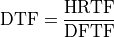
where the DFTF is computed as the energetic average across source positions and ears

The index
 denotes the source position,
  the
absolute spectrum, and
the
absolute spectrum, and  normalized area weights for
numerical integration (see below). The average across ears is made to not
alter binaural cues.
normalized area weights for
numerical integration (see below). The average across ears is made to not
alter binaural cues.- Parameters:
sofa (sofar Sofa object, str) – Sofa object containing the sound pressure or filename of a SOFA file to be loaded. SOFA object/file must be of the convention SimpleFreeFieldHRIR or GeneralFIR
smooth_fractions (number, None, optional) – Apply fractional octave smoothing to the DFTF. E.g. a value of
3applies third octave smoothing and a value of1applies octave smoothing. The defaultNonedoes not apply any smoothing.phase (string, optional) –
Define the phase of the inverse DFTF.
'minimum'generate a minimum phase response
'linear'generate a linear phase response
'zero'generates a zero phase response.
The default is
'minimum'.weights (optional) –
Define the weights used for the numerical integration
'equal'Uses equal weights across source positions
'voronoi'- array like
Uses the weights provided in a list or numpy array. The size of the array like must agree with the number of HRTFs
The default is
'equal'
- Returns:
sofa (sofar Sofa.object) – The DTFs as Sofa object. Can be written to disk with sofar.write_sofa.
DTFT_inverse (pyfar Signal object) – The inverse diffuse field transfer function as a pyfar signal object
- mesh2hrtf.compute_hrirs(sofa, n_shift, sampling_rate=None)[source]
Compute HRIR from HRTF by means of the inverse Fourier transform.
This requires the following:
The HRTFs contained in sofa have been referenced using reference_hrtfs().
HRTF must be available for frequencies f_0 to f_1 in constant steps. f_0 must be > 0 Hz and f_1 is assumed to be half the sampling rate.
HRIRs are computed with the following steps
Add data for 0 Hz. The HRTF at 0 Hz is 1 (0 dB) by definition because the HRTF describes the filtering of incoming sound by the human anthropometry (which does not change the sound at 0 Hz).
Only the absolute value for the data at half the sampling rate is used. Otherwise the next step would produce complex output
The HRTF spectrum is mirrored and the HRIR is obtained through the inverse Fourier transform
The HRIRs are circularly shifted by n_shift samples to enforce a causal system. A good shift value for a sampling rate of 44.1 kHz might be between 20 and 40 samples.
- Parameters:
sofa (sofar Sofa object, str) – Sofa object containing the sound pressure or filename of a SOFA file to be loaded. SOFA object/file must be of the convention SimpleFreeFieldHRTF or GeneralTF
n_shift (int) – Amount the HRIRs are shifted to enforce a causal system.
sampling_rate (int) – The sampling rate in Hz. The sampling rate can two times any frequency for which the HRTF was computed. The default
Noneassumes the sampling rate to be two times the highest frequency for which the HRTF was computed.
- Returns:
sofa – HRIRs
- Return type:
sofar Sofa.object
Notes
HRIRs for different sampling rates can be generated from a single SOFA file if discarding or adding some data.
- mesh2hrtf.export_vtk(folder=None, object=None, mode='pressure', frequency_steps=None, dB=True, log_prefix=20, log_reference=1, deg=False, unwrap=False)[source]
Export pressure on the (head) mesh to vtk files for importing in ParaView
The exported vtk files are written to folder/Output2HRTF/vtk in a subfolder that contains the name of the object and the mode.
- Parameters:
folder (str, optional) – The Mesh2HRTF project folder. The default
Noneuses the current folderobject (str, optional) – The name of the mesh or evaluation grid for which the pressure is exported. The object is searched in the folders ObjectMehshes and EvaluationGrids. The default
Noneselects the Reference mesh.mode (str) –
Specify which data should be exported to VTK
'pressure'export the absolute sound pressure
'phase'export the phase
'velocity'export the RMS of the particle velocity
The default is
'pressure'.frequency_steps (list, optional) – List with first and last frequency step for which the data is exported. The default
Noneexports the data for all frequency steps.dB (bool, optional) – Save pressure in dB if
True(default) and linear otherwise.log_prefix (number, optional) – The pressure in dB is calculated as
log_prefix * log_10(pressure/log_reference). The default values are20and1.log_reference (number, optional) – The pressure in dB is calculated as
log_prefix * log_10(pressure/log_reference). The default values are20and1.deg (bool, optional) – Save the phase in degree. The default
Falsesaves the phase in radians.unwrap (bool optional) – Unwrap the phase. The default
Falsedoes not unwrap the phase.
- mesh2hrtf.inspect_sofa_files(path, pattern=None, plot=None, plane='horizontal', atol=0.1, savedir=None, dB_time=False, dB_freq=True, freq_scale='log')[source]
Inspect SOFA files through plots.
Generate and save plots for horizontal plane HRIRs (time domain) and HRTFs (frequency domain) for one or multiple SOFA files.
- Parameters:
path (str) –
Path to a folder containing Mesh2HRTF projects. SOFA files are searched in path/Output2HRTF if it exist and directly in path otherwise.
The name may contain an asterisk to process data in multiple folders. E.g., if path is
"some/path/HRIRs_*"files in all folder starting with “HRIRs” would be scanned for SOFA files.pattern (str) – Plot only files that contain pattern in their filename. The default
Noneplots all SOFA files.plot (str, optional) –
"2D"generate line plots of four sources on the horizontal plane (front, back, left, right). The closest sources to the ideal positoins are used for plotting.
"3D"generate color coded plots of all sources on the horizontal plane. See also parameter atol below.
The default
Nonegenerate both plots.plane (str, optional) – Select the plane for which is shown in the 3D plot. Can be
"horizontal"(default),"median", or"frontal"atol (float, optional) – Sources on the plane are searched within a range +/- atol degree. The default is
0.1.savedir (str) – Directory for saving the merged SOFA files. The default
Nonesaves the files to the directory given by path.dB_time (bool, optional) – Plot the logarithmic time data. The default is
'False'.dB_freq (bool, optional) – Plot the logarithmic magnitude data. The default is
'True'.freq_scale (str, optional) –
'log'to plot on a logarithmic frequency axis and'linear'to plot on a linear frequency axis. The default is'log'.
- mesh2hrtf.manage_numcalc(project_path='/home/docs/checkouts/readthedocs.org/user_builds/mesh2hrtf/checkouts/v1.0.0/docs', numcalc_path=None, max_ram_load=None, ram_safety_factor=1.05, max_cpu_load=90, max_instances=2, wait_time=15, starting_order='alternate', confirm_errors=False)[source]
Run NumCalc on one or multiple Mesh2HRTF project folders.
This script monitors the RAM and CPU usage and starts a new NumCalc instance whenever enough resources are available. The required RAM for each frequency step is estimated using NumCalc’s estimate_ram option. A log file is written to the project_path containing detailed information on the launched frequency steps, available resources, and detected errors.
Note
manage_numcalc can also be launched by running the python script manage_numcalc_script.py contained in the subfolder mesh2hrtf/NumCalc of the Mesh2HRTF Git repository.
- Parameters:
project_path (str, optional) – The directory to simulate: It can be path to either 1- directory that contains multiple Mesh2HRTF project folders or 2- one Mesh2HRTF project folder (folder containing “parameters.json”). The default is os.getcwd()
numcalc_path (str, optional) – On Unix, this is the path to the NumCalc binary (by default ‘NumCalc’ is used). On Windows, this is the path to the folder ‘NumCalc_WindowsExe’ from https://sourceforge.net/projects/mesh2hrtf-tools/ (by default the project_path is searched for this folder)
max_ram_load (number, optional) – The RAM that can maximally be used in GB. New NumCalc instances are only started if enough RAM is available. The default
Noneuses all available RAM will be used.ram_safety_factor (number, optional) – A safety factor that is applied to the estimated RAM consumption. The estimate is obtained using NumCalc -estimate_ram. The default of
1.05would for example assume that 10.5 GB ram are needed if a RAM consumption of 10 GB was estimated by NumCalc.max_cpu_load (number, optional) – Maximum allowed CPU load in percent. New instances are only launched if the current CPU load is below this value. The default is 90 percent.
max_instances (int, optional) – The maximum numbers of parallel NumCalc instances. By default a new instance is launched until the number of available CPU cores given by
psutil.cpu_count()is reached.wait_time (int, optional) – Delay in seconds for waiting until the RAM and CPU usage is checked after launching a NumCalc instance. This has to be sufficiently large for the RAM and CPU to be fully used by the started NumCalc instance. The default is 15. After this initial wait time, the resources are checked every second. And the next instance is started, once enough resources are available.
starting_order (str, optional) –
Control the order in which the frequency steps are launched.
'high'Always launches the step with the highest possible memory consumption.
'low'Alsways launches the step with the lowest estimated memory consumption
'alternate'(default)mixes the two approaches above.
confirm_errors (bool, optional) – If True, manage_numcalc waits for user input in case an error ” occurs. The default false exits the function immediately if an error occurs.
- mesh2hrtf.merge_sofa_files(paths, pattern=None, savedir=None)[source]
Merge HRTFs and HRIRs from SOFA-files containing left and right ear data.
The names of the merged SOFA files and with the “merged.sofa”.
- Parameters:
paths (tuple) –
A tuple containing paths to folders. SOFA files are searched in paths/Output2HRTF if it exist and directly in paths otherwise.
The names may contain an asterisk to process data in multiple folders. E.g., if
paths[0]is"some/path/left/*"andpaths[1]is"some/path/right/*"all SOFA files in the matching folders will be merged. Note the SOFA files contained in the folders must have the same names to be merged. Currently, paths must contain exactly two paths.pattern (str) – Merge only files that contain pattern in their filename. The default
Nonemerges all SOFA files.savedir (str) – Directory for saving the merged SOFA files. The default
Nonesaves the files to the directory given by left.
- mesh2hrtf.output2hrtf(folder=None)[source]
Process NumCalc output and write data to disk.
Processing the data is done in the following steps
Read project parameter from parameters.json
use
write_output_reportto parse files in project_folder/NumCalc/source_*/NC*.out, write project report to project_folder/Output2HRTF/report_source_*.csv. Raise a warning if any issues were detected and write report_issues.txt to the same folderRead simulated pressures from project_folder/NumCalc/source_*/be.out. This and the following steps are done, even if an issue was detected in the previous step
use
reference_hrtfsandcompute_hrirsto save the results to SOFA files
- Parameters:
folder (str, optional) – The path of the Mesh2HRTF project folder, i.e., the folder containing the subfolders EvaluationsGrids, NumCalc, and ObjectMeshes. The default,
Noneuses the current working directory.
- mesh2hrtf.process_multiple_outputs2hrtf(paths, merge=False, inspect=False, pattern=None, plot=None, plane='horizontal', atol=0.1, savedir=None)[source]
Process NumCalc outputs from multiple projects and write data to disk.
This is a convenience function that process multiple Mesh2HRTF projects and offers to merge and plot the results in one call:
Run
output2hrtfin folders specified by paths. This also callswrite_output_report,reference_hrtfs, andcompute_hrirs.Run
merge_sofa_files(optional).Run
inspect_sofa_files(optional). If merge isTrue, only the merged data is inspected.Move data to savedir (optional). If merge is
Trueonly the merged data will be moved and the remaining data is deleted. The file names of the moved data stat with the name of the folder from which they were moved to savedir.
- Parameters:
paths (str, tuple of strings) – Paths to search for Mesh2HRTF projects. If paths is a tuple, the projects found in the paths will be merged if merge is
True. E.g., ifpaths[0]is"some/path/left/*"andpaths[1]is"some/path/right/*"all SOFA files in the matching folders will be merged. If merge isFalseall projects will be processed independently.merge (bool, optional) –
Trueto merge data from different projets usingmerge_sofa_files(see paths above). The defaultFalsedoes not merge data.inspect (bool, optional) –
Trueto plot data the results from different projets usinginspect_sofa_files. If merge isTruethis is only done for the merged data. The defaultFalsedoes not plot the data.pattern (str, optional) – Merge, inspect and move only SOFA files that have pattern in their file names. E.g., if pattern is
"HRIR"only the SOFA files containing HRIR in their name will be merged, inspected, and coped to savedir (see below).plot (str, optional) – This parameter is passed to
inspect_sofa_files.plane (str, optional) – This parameter is passed to
inspect_sofa_files.atol (float, optional) – This parameter is passed to
inspect_sofa_files.savedir (str, optional) – Path under which the results are saved. The default
Nonewill leave the data in their project folders, any other value will move the data to savedir and delete all data in project_folder/Output2HRTF except for the project reports.
- Raises:
ValueError – If issues were detected in any Mesh2HRTF project. The value error is raised after all data was processed.
- mesh2hrtf.read_evaluation_grid(name, show=False)[source]
Read Mesh2HRTF evaluation grid.
- Parameters:
name (str) – Name of the folder containing the nodes of the evaluation grid in Nodes.txt
show (bool, optional) – If
Truethe points of the evaluation grid are plotted. The default isFalse.
- Returns:
coordinates – The points of the evaluation grid as a pyfar Coordinates object
- Return type:
pyfar Coordinates
- mesh2hrtf.read_ram_estimates(folder: str)[source]
Read estimated RAM consumption from Memory.txt.
Note that the RAM consumption per frequency step can be estimated and written to Memory.txt by calling
NumCalc -estimate_ram. This must be done before calling this function.- Parameters:
folder (str) – full path to the source folder containing the Memory.txt file from which the estimates are read
- Returns:
estimates – An array of shape
(N, 3)whereNis the number of frequency steps. The first column contains the frequency step, the second the frequency in Hz, and the third the estimated RAM consumption in GB.- Return type:
numpy array
- mesh2hrtf.reference_hrtfs(sofa, sourceType, sourceArea, speedOfSound, densityOfAir, mode='min')[source]
Reference HRTFs to the sound pressure in the center of the head. After referencing the sound pressure approaches 1 (0 dB) for low frequencies.
- Parameters:
sofa (sofar Sofa object, str) – Sofa object containing the sound pressure or filename of a SOFA file to be loaded. SOFA object/file must be of the convention SimpleFreeFieldHRTF or GeneralTF
sourceType (str) – The referencing depends on the source type used for simulating the sound pressure. Can be “Both ears”, “Left ear”, “Right ear”, “Point source”, or “Plane wave”
sourceArea (array like) – The area of the source is required if sourceType is “Both ears” in which case sourceAre is a list with two values or if sourceType is “Left ear” or “Right ear” in which case sourceArea is a list with one value.
speedOfSound (number) – The speed of sound in m/s
densityOfAir (number) – The density of air in kg / m**3
mode (str, optional) – Pass “min”, “max”, or “mean” to reference to the minmum, maximum, or mean radius in sofa.SourcePosition. Pass “all” to normalize each HRTF to the radius of the corresponding source.
- Returns:
sofa – A copy of the input data with referenced sound pressure
- Return type:
sofar Sofa.object
- mesh2hrtf.remove_outputs(paths, boundary=False, grid=False, hrtf=False, vtk=False, reports=False)[source]
Remove output data from Mesh2HRTF project folder.
Use this function to delete output that is no longer needed and is taking too much disk space.
- Parameters:
paths (str, tuple of strings) – Paths under which Mesh2HRTF project folers are searched. Can contain * remove data from multiple project folders, e.g., path/*left will remove data from all folders in path that end with left.
boundary (bool, optional) – Remove raw pressure and velocity simulated on the boundary, i.e., the mesh. This data is saved in project_folder/NumCalc/source_*/be.out/be.*/*Boundary
grid (bool, optional) – Remove raw pressure and velocity simulated on the evaluation grid.This data is saved in project_folder/NumCalc/source_*/be.out/be.*/*EvalGrid
hrtf (bool, optional) – Remove HRTFs saved in SOFA files saved in project_folder/Output2HRTF/HRTF_*.sofa.
vtk (bool, optional) – Remove vtk exports generated with
export_vtkand saved in project_folder/Output2HRTF/vtk.reports (bool, optional) – Remove project reports saved in project_folder/Output2HRTF/report_*.
- mesh2hrtf.resample_sofa_file(sofa, sampling_rate, frac_limit=None, post_filter=True)[source]
Resample Sofa file to new sampling rate.
The SciPy function
scipy.signal.resample_polyis used for resampling. The resampling ratioL = sampling_rate/signal.sampling_rateis approximated by a fraction of two integer numbers up/down to first upsample the signal by up and then downsample by down. This way up and down are smaller than the respective new and old sampling rates.Note
sampling_rate should be divisible by 10, otherwise it can cause an infinite loop in the
resample_polyfunction.The amplitudes of the resampled signal can match the amplitude of the input signal in the time or frequency domain. See the parameter match_amplitude and the examples for more information.
- Parameters:
sofa (Sofa object, str) – Input data to be resampled as a sofar Sofa object or filename of the Sofa file on disk.
sampling_rate (number) – The new sampling rate in Hz
frac_limit (int) –
Limit the denominator for approximating the resampling factor L (see above). This can be used in case the resampling gets stuck in an infinite loop (see note above) at the potenital cost of not exactly realizing the target sampling rate.
The default is
None, which usesfrac_limit = 1e6.post_filter (bool, optional) – In some cases the up-sampling causes artifacts above the Nyquist frequency of the input signal, i.e.,
signal.sampling_rate/2. IfTruethe artifacts are suppressed by applying a zero-phase Elliptic filter with a pass band ripple of 0.1 dB, a stop band attenuation of 60 dB. The pass band edge frequency issignal.sampling_rate/2. The stop band edge frequency is the minimum of 1.05 times the pass band frequency and the new Nyquist frequency (sampling_rate/2). The default isTrue. Note that this is only applied in case of up-sampling.
- Returns:
sofa_resampled – The resampled version of the input data with a length of
up/down * sofa.get_dimension("N)samples. The object can be written to disk withsofar.write_sofa().- Return type:
Sofa object
- mesh2hrtf.write_evaluation_grid(points, name, start=200000, discard=None, show=False)[source]
Write evaluation grid for use in Mesh2HRTF.
Mesh2HRTF evaluation grids consist of the two text files Nodes.txt and Elements.txt. Evaluations grids are always triangularized.
- Parameters:
points (pyfar Coordinates, numpy array) – pyfar Coordinates object or 2D numpy array containing the cartesian points of the evaluation grid in meter. The array must be of shape (N, 3) with N > 2.
name (str) – Name of the folder under which the evaluation grid is saved. If the folder does not exist, it is created.
start (int, optional) – The nodes and elements of the evaluation grid are numbered and the first element will have the number start. In Mesh2HRTF, each Node must have a unique number. The nodes/elements of the mesh for which the HRTFs are simulated start at 1. Thus start must at least be greater than the number of nodes/elements in the evaluation grid.
discard ("x", "y", "z", optional) – In case all values of the evaluation grid are constant for one dimension, this dimension has to be discarded during the triangularization. E.g. if all points have a z-value of 0 (or any other constant), discarded must be “z”. The default
Nonedoes not discard any dimension.show (bool, optional) – If
Truethe evaluation grid is plotted and the plot is saved to the folder given by name
Examples
Generate a spherical sampling grid with pyfar and write it to the current working directory
>>> import mesh2hrtf as m2h
>>> import pyfar as pf
>>>
>>> points = pf.samplings.sph_lebedev(sh_order=10)
>>> m2h.write_evaluation_grid(
...     points, "Lebedev_N10", discard=None, show=True)
(
Source code,png,hires.png,pdf)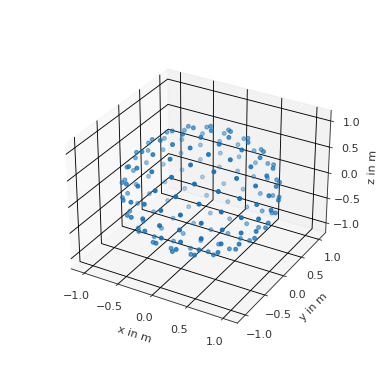
- mesh2hrtf.write_material(filename, kind, frequencies, data, comment=None)[source]
Write boundary condition to file.
Mesh2HRTF supports non-rigid boundary conditions in the form of text files. Such files can be written with this function.
- Parameters:
filename (str) – Name of the material file that is written to disk. Must end with “.csv”
kind (str) –
Defines the kind of boundary condition
"pressure"A pressure boundary condition can be used to force a certain pressure on the boundary of the mesh. E.g., a pressure of 0 would define a sound soft boundary.
"velocity"A velocity boundary condition can be used to force a certain velocity on the boundary of the mesh. E.g., a velocity of 0 would define a sound hard boundary.
admittanceA normalized admittance boundary condition can be used to define arbitrary boundaries. The admittance must be normalized, i.e., admittance/(rho*c) has to be provided, which rho being the density of air in kg/m**3 and c the speed of sound in m/s.
frequencies (array like) – The frequencies for which the boundary condition is given
data (array like) – The values of the boundary condition at the frequencies given above.
comment (str, optional) – A comment that is written to the beginning of the material file. The default
Nonedoes omit the comment.
Notes
Mesh2HRTF performs an interpolation in case the boundary condition is required at frequencies that are not specified. The interpolation is linear between the lowest and highest provided frequency and uses the nearest neighbor outside this range.
- mesh2hrtf.write_output_report(folder=None)[source]
Generate project report from NumCalc output files.
NumCalc (Mesh2HRTF’s numerical core) writes information about the simulations to the files NC*.out located under NumCalc/source_*. The file NC.out exists if NumCalc was ran without the additional command line parameters
-istartand-iend. If these parameters were used, there is at least one NC*-*.out. If this is the case, information from NC*-*.out overwrites information from NC.out in the project report.Note
The project reports are written to the files Output2HRTF/report_source_*.csv. If issues were detected, they are listed in Output2HRTF/report_issues.csv.
The report contain the following information
- Frequency step
The index of the frequency.
- Frequency in Hz
The frequency in Hz.
- NC input
Name of the input file from which the information was taken.
- Input check passed
Contains a 1 if the check of the input data passed and a 0 otherwise. If the check failed for one frequency, the following frequencies might be affected as well.
- Converged
Contains a 1 if the simulation converged and a 0 otherwise. If the simulation did not converge, the relative error might be high.
- Num. iterations
The number of iterations that were required to converge
- relative error
The relative error of the final simulation
- Comp. time total
The total computation time in seconds
- Comp. time assembling
The computation time for assembling the matrices in seconds
- Comp. time solving
The computation time for solving the matrices in seconds
- Comp. time post-proc
The computation time for post-processing the results in seconds
- Parameters:
folder (str, optional) – The path of the Mesh2HRTF project folder, i.e., the folder containing the subfolders EvaluationsGrids, NumCalc, and ObjectMeshes. The default,
Noneuses the current working directory.- Returns:
found_issues (bool) –
Trueif issues were found,Falseotherwisereport (str) – The report or an empty string if no issues were found